TL;DR:
- Most Amazon sellers rely on gut feeling rather than data, losing sales they are unaware of.
- Implementing a step-by-step analytics approach provides clear signals to fix issues and optimize sales.
Most Amazon sellers are making pricing, inventory, and listing decisions based on gut feeling rather than data, and it’s quietly costing them sales they don’t even know they’re losing. A step by step Amazon analytics approach changes that entirely. Instead of guessing why a product isn’t converting or why margins keep shrinking, you get clear signals directly from Seller Central that tell you exactly what to fix and when. This guide walks you through the complete process, from understanding which reports matter to building a weekly workflow that keeps your sales moving in the right direction.
Table of Contents
- Understanding Amazon analytics essentials for sellers
- Preparing your Amazon Seller Central analytics dashboard and reports
- Step by step walkthrough of key Amazon analytics reports
- Executing a step-by-step Amazon analytics review workflow
- Verifying insights and troubleshooting common Amazon analytics mistakes
- Why mastering Amazon analytics is your secret weapon for long-term sales growth
- Optimize your Amazon listings with expert analytics support
- Frequently asked questions
Key Takeaways
| Point | Details |
|---|---|
| Start with key reports | Focus on Sales Dashboard and Financial Reports to understand sales and profitability clearly. |
| Establish a review routine | Check key Amazon analytics weekly to spot trends and adjust strategies promptly. |
| Use multiple reports | Combine sales, inventory, and financial data for comprehensive business insights. |
| Optimize listings with data | Leverage search terms and conversion data to improve product titles, keywords, and pricing. |
| Monitor inventory age | Watch for aged inventory to avoid costly storage fees and optimize stock levels. |
Understanding Amazon analytics essentials for sellers
Before you can act on data, you need to know what you’re looking at. Amazon analytics isn’t one single tool. It’s a collection of reports and dashboards inside Seller Central, each designed to answer different business questions.
The main report categories every seller should know:
- Business Reports: Track sessions, page views, unit session percentage (your conversion rate per ASIN), and Buy Box share.
- Financial Reports: Break down your actual earnings after referral fees, FBA fees, and other charges.
- Inventory Reports: Monitor stock levels, aged inventory buckets, sell-through rates, and restock recommendations.
- Customer Reports: Surface demographics and repeat purchase behavior.
Amazon Business Reports provide metrics like sales revenue, units sold, and customer demographics to help you make decisions grounded in reality rather than assumption. For a full breakdown of what’s available, the Amazon Business Reports overview is a solid starting point.
The key metrics to track across these reports include:
- Sales revenue and units sold (are you growing or contracting?)
- Conversion rate (what percentage of shoppers who view your listing actually buy?)
- Buy Box percentage (how often is your offer winning the featured spot?)
- Inventory age (are you paying more in storage fees than the product is worth?)
Understanding how using data for growth connects to real business decisions is what separates sellers who scale from those who plateau. Set a recurring review routine, weekly at minimum, and these reports become your early warning system for problems and your map to opportunities.
Now that you know why analytics matter, let’s prepare by accessing and organizing your key Amazon reports.
Preparing your Amazon Seller Central analytics dashboard and reports
Getting into the right reports is simpler than most sellers expect. Here’s how to set up your analytics dashboard for a productive review session.
Steps to access your key analytics reports:
- Log into Seller Central and click the Reports tab in the top navigation.
- Select Business Reports from the dropdown to access traffic and conversion data by ASIN.
- Navigate to Payments for Financial Reports, which show your actual deposited earnings after all fees.
- Go to Inventory then Inventory Planning to find the Inventory Health and Aged Inventory dashboards.
- Visit the Sales Dashboard on your Seller Central homepage for a real-time snapshot of orders and revenue.
Access reports by logging into Seller Central and navigating to the Reports tab, then selecting the report type and date range you want to analyze.
Once inside each report, use these filters to sharpen your view:
- Date range: Compare the last 30 days to the previous 30 days to spot trends. For seasonal products, year-over-year comparisons reveal more than month-over-month.
- ASIN or SKU filter: Drill down to individual products instead of looking at blended account totals that hide individual listing problems.
- Product group filter: Group similar items together to identify category-level patterns.
These essential Amazon reports form the backbone of every data review session worth running.
Pro Tip: Don’t analyze all your ASINs at once. Start with your top 10 by revenue and your bottom 10 by conversion rate. Those two groups tell you the most about where your business is winning and where it’s bleeding.
With the reports organized, you’re ready to start interpreting the key metrics for actionable insights.
Step by step walkthrough of key Amazon analytics reports

This is where your analytics work gets real. Each report tells a different part of your sales story, and reading them together gives you the full picture.
Sales Dashboard
Your first stop every session. Focus on:
- Units Ordered: Are you selling more or fewer units than last period?
- Product Sales: Revenue before fees. Always compare this to net earnings in Financial Reports.
- Conversion Rate: The percentage of sessions that result in a purchase. Low conversion signals listing issues like weak images, unclear titles, or a price that’s out of sync with the market.
- Average Selling Price: If this drops without a deliberate strategy, you may be losing Buy Box share to lower-priced competitors.
For a deeper understanding of what these numbers mean for your business, see understanding Amazon conversion rate.
Business Reports (by ASIN)
This is your listing-level performance data. The most important columns:
| Metric | What It Tells You | Action Trigger |
|---|---|---|
| Sessions | How many shoppers landed on your listing | Low sessions = traffic or ranking issue |
| Page Views | Total views including repeat visits | High views, low conversions = listing problem |
| Unit Session % | Your conversion rate per ASIN | Below 10% warrants investigation |
| Buy Box % | How often your offer wins the featured spot | Below 80% = pricing or eligibility issue |
Inventory Reports
Check your inventory age buckets regularly:
- 0 to 90 days: Healthy range
- 91 to 180 days: Storage fees are creeping up, consider a small price reduction
- 181 to 365 days: Urgent action needed. Run a promotion or liquidate.
- Over 365 days: You are paying long-term storage fees that can erase margins fast.
Financial Reports
Referral fees average 15% of sales in most categories, and FBA fees add another variable layer on top of that. Sellers who don’t track their Financial Reports often think they’re profitable when they’re actually running thin or negative margins.
Use the best ecommerce SEO tools alongside your Financial Reports to understand the true return on your advertising spend per ASIN.
Review the Amazon seller fees impact on your net margins before making any pricing decisions.
Pro Tip: Build a simple spreadsheet that captures your top ASINs’ unit session percentage and Buy Box share each week. You’ll spot listing degradation weeks before it shows up as a revenue drop.
Now that you know what to look for in each report, let’s put these insights into practical use with a step-by-step analysis process.
Executing a step-by-step Amazon analytics review workflow
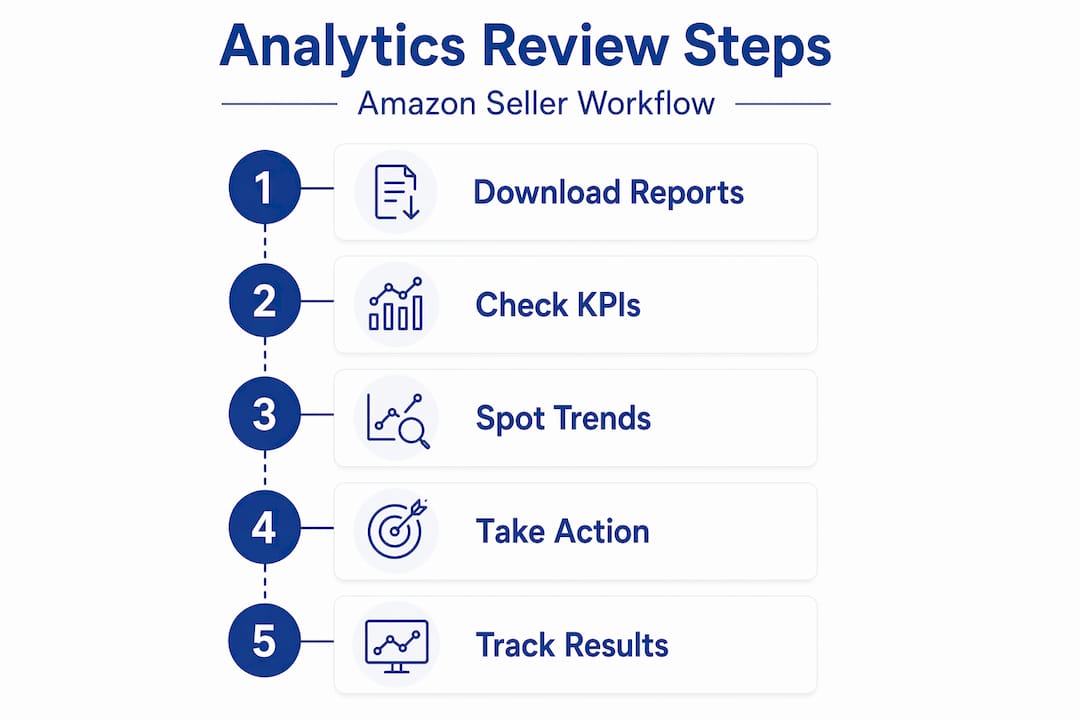
A one-time analysis session won’t move the needle. What actually drives growth is a consistent weekly workflow. Here’s how to build one that’s sustainable and results-focused.
Your weekly Amazon analytics review, step by step:
- Open Sales Dashboard and note units ordered and total sales versus last week. Flag any ASINs with a 20%+ drop.
- Pull Business Reports filtered by the last 30 days. Sort by unit session percentage (lowest first) to immediately find underperforming listings.
- Review Inventory Health. Identify any ASINs entering the 91-plus-day bucket and queue them for a price test or promotion.
- Check Financial Reports to confirm your net margin per ASIN after fees and advertising costs.
- Log your findings in a tracking document with date, metric, observed change, and planned action.
Weekly review of Sales Dashboard, inventory, and financial reports helps you catch trends early and adjust strategies before problems compound.
Group your ASINs into performance buckets:
- Growth opportunities: High sessions, improving conversion. Invest more in advertising here.
- Margin protection: Good revenue but fees eating into profits. Reprice or renegotiate sourcing costs.
- Clearance candidates: Slow sell-through, aging inventory. Prioritize moving stock over protecting price.
Repricing and inventory moves based on data:
| Signal | Action |
|---|---|
| Buy Box % below 70% | Review your price against the lowest FBA competitor |
| Conversion rate below 8% | Audit listing title, images, and bullet points |
| Inventory age over 90 days | Run a 10-15% price reduction or coupon |
| Margin below 15% net | Investigate FBA fees, referral category, and ad spend |
Using data-driven repricing and inventory management prevents profit erosion and improves sales velocity, especially during competitive periods.
For more guidance, visit evaluating Amazon sales data, optimizing listings for conversion, and Amazon FBA inventory management.
Pro Tip: Keep a change log. Every time you adjust a price, update a listing, or run a promotion, note the date and the metric that triggered it. This makes future pattern recognition dramatically faster.
After mastering your review workflow, let’s explore how to verify and troubleshoot your analytics findings to maximize sales impact.
Verifying insights and troubleshooting common Amazon analytics mistakes
Data can mislead you if you’re not careful. Here’s how to make sure what you’re seeing is real, and how to avoid the traps that trip up most sellers.
Common analytics mistakes and how to fix them:
- Reacting to daily swings: One bad day is noise. One bad week is a signal. Always anchor decisions to weekly or monthly trends rather than single-day dips.
- Blending account-level data: Looking at totals hides the fact that two products might be performing brilliantly while three are dragging the average down. Always filter by ASIN.
- Ignoring the Buy Box metric: Sellers often chase conversion rate fixes when the real problem is that they’re losing the Buy Box to a competitor with a lower price or better seller metrics.
- Overlooking search term reports: Your Search Terms Report inside Brand Analytics shows you which keywords are actually driving purchases, not just clicks. Use this to refresh your backend keywords and title structure.
Low conversion might be due to listing content, price mismatch, or Buy Box issues, so always investigate all three before concluding what the cause is.
When you find a listing with a sharp drop in sessions, check three things in order: your keyword ranking (have you slipped for your main term?), your price relative to competitors, and your review count and star rating. Most session drops trace back to one of those three. The listing enhancement guide covers the fixes in detail.
With troubleshooting covered, let’s conclude with an expert perspective that reveals what typical analytics guidance misses.
Why mastering Amazon analytics is your secret weapon for long-term sales growth
Here’s what most Amazon analytics guides won’t tell you: the data doesn’t make decisions. You do. And the sellers who win long-term aren’t the ones who check their dashboards most often. They’re the ones who have built a clear decision framework around what they see.
Most sellers abandon analytics within weeks because the reports feel overwhelming or the metrics don’t tell an obvious story. That’s not a data problem. That’s a prioritization problem. You don’t need to track 40 metrics. You need to track the five that directly impact revenue and margin for your specific catalog.
The other mistake is optimizing for sales volume instead of margin. It feels good to watch units ordered climb, but sellers who regularly use analytics outperform competitors who rely on guesswork by protecting their margins first and scaling second. A product selling 500 units a month at 8% net margin is less valuable than one selling 200 units at 22% net margin, after fees, ads, and returns.
The real power of analytics shows up when you combine report types. A Business Report tells you conversion is down. A Financial Report tells you your ad spend jumped 30% on the same ASIN. A search term report shows a competitor hijacking your branded keyword. Those three data points together tell a story that none of them could tell alone.
Analytics isn’t just a tool. It’s the mindset of treating your Amazon business like a system with measurable inputs and outputs. Sellers who adopt that mindset make better inventory calls, smarter ad decisions, and more confident pricing moves. For a broader view of why consistent monitoring matters, see the importance of monitoring Amazon analytics.
Optimize your Amazon listings with expert analytics support
Analytics tells you what’s wrong. The right optimization strategy fixes it. If your data is showing low conversion rates, weak Buy Box share, or listings that aren’t ranking for their best keywords, those are solvable problems.

At Searchoneers, we translate your analytics data into concrete listing improvements. Our Amazon listing enhancement guide gives you a clear framework for upgrading titles, bullet points, and backend keywords based on what your search term and conversion reports are actually telling you. We also offer a full listing optimization workflow designed specifically for sellers who want to turn data into higher-performing product pages. And if you want to go deeper on the SEO side, our data-driven Amazon SEO optimization approach connects your analytics insights directly to ranking and revenue gains.
Frequently asked questions
What is the most important Amazon report to start with for new sellers?
New sellers should start with the Sales Dashboard and Financial Reports, as they provide the clearest picture of what you’re selling and what you’re actually keeping after fees. These two reports together reveal both performance and profitability before you layer in more complex data.
How often should I review my Amazon analytics reports?
A weekly review hits the right balance between catching meaningful trends and avoiding the distraction of daily noise. Weekly review balances timely insights with a manageable workload, though daily checks on your Sales Dashboard are useful during peak seasons like Q4.
How can I use Amazon analytics to improve my product listings?
Analyze your unit session percentage, search term report, and customer demographics to identify exactly where your listing is losing buyers. Use Amazon Search Terms Report and conversion data to refine your title keywords and primary images for better alignment with what shoppers are actually searching for.
What metrics indicate my inventory might be incurring extra storage fees?
Watch for ASINs with inventory age over 90 days combined with low sell-through rates. Inventory age over 90 days flags storage fee risks that can average 10 to 20% profit erosion if left unaddressed for more than one storage cycle.